

For most organisations, turning on security defaults is the fastest route to multifactor authentication across Microsoft 365, while Conditional Access suits those needing finer control over who is prompted and when. Either way, Microsoft Authenticator and passkeys are now the preferred sign-in methods, with SMS and voice codes being phased out. Before switching anything on, set up two emergency access accounts so you never lock yourself out.
TL;DR:
- Security defaults prompt every user when they next access an account and block legacy authentication, so test older business applications before enabling them across the organization.
- Conditional Access enables role and application rules, but advanced controls require Entra ID P1 or P2; disable security defaults before switching to this approach.
- Pilot Conditional Access policies in report only mode for at least a week, review sign in logs for unexpected blocks, then enforce changes in stages.
- Create at least two emergency accounts, exclude them from MFA and Conditional Access, and secure them with methods that do not rely on phones.
- Microsoft begins enabling passkeys for SMS and voice users on September 1, 2026; its managed service ends February 1, 2027, for tenants without telecom providers.
Table of Contents
- Three ways to enable MFA in Microsoft 365
- How to enable security defaults and what users will see
- How to enable MFA with Conditional Access and baseline policies
- User registration, verification methods and the move away from SMS
- Admin best practices: emergency accounts, roles and rollout planning
- How to check MFA status and fix common sign-in problems
- Our take: what actually makes an MFA rollout succeed
- Let us manage your Microsoft 365 security rollout
- FAQ
- Sources
Three ways to enable MFA in Microsoft 365
Microsoft 365 gives administrators three routes to multifactor authentication, and picking the right one depends on how much control you need over the rollout.
Security defaults are the quickest option. They apply MFA across the whole tenant in one click, lean on Microsoft Authenticator as the default method and automatically block legacy authentication protocols that do not support modern sign-in challenges. There is no per-group tuning. It is either on for everyone or off, which suits smaller organisations that want strong protection without building policies from scratch.
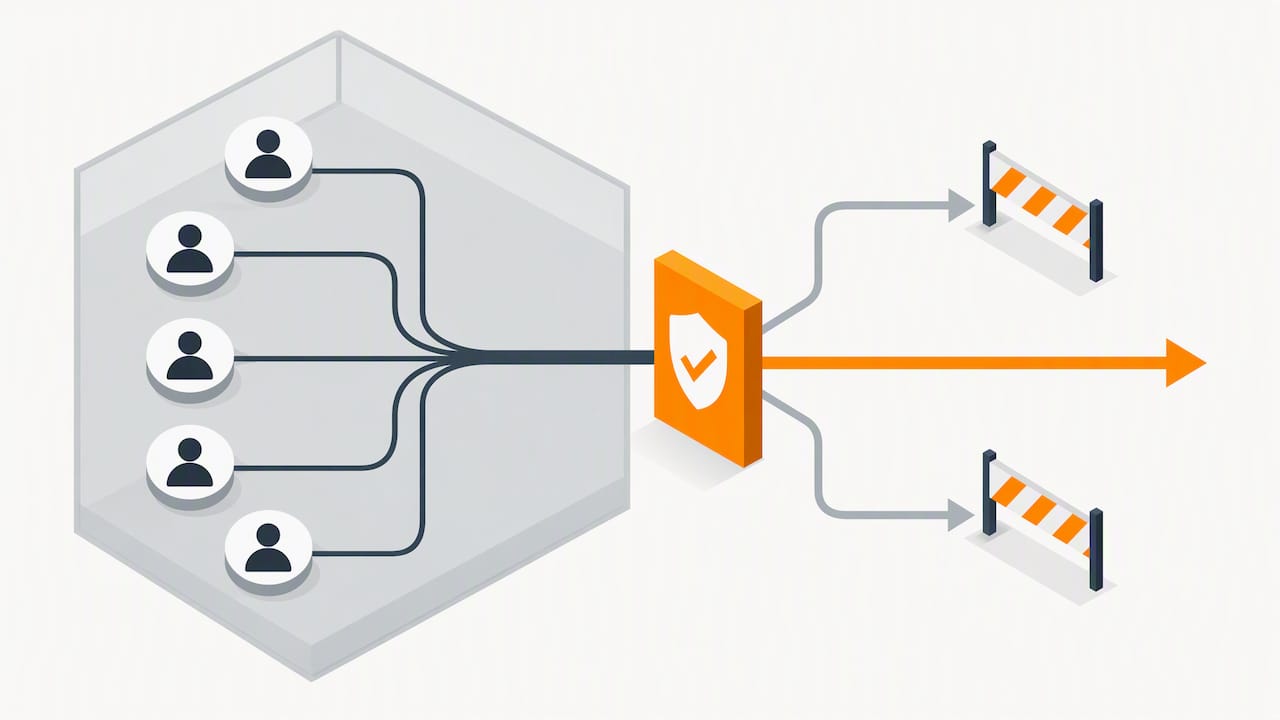
Conditional Access offers the opposite: granular, rule-based control. You can require MFA only for certain roles, locations or applications, and apply authentication strengths that range from standard multifactor to phishing-resistant methods. This flexibility depends on Microsoft Entra ID P1 or P2 licensing for the more advanced controls, according to Microsoft’s setup guidance.
Legacy per-user MFA still exists in some tenants but Microsoft no longer recommends it outside narrow edge cases, since it lacks the policy flexibility and reporting of the newer approaches. Enabling any of these routes typically requires a Global Administrator or Conditional Access Administrator role.
- Security defaults suit smaller tenants wanting fast, tenant-wide protection.
- Conditional Access suits organisations needing role-based or risk-based rules.
- Legacy per-user MFA is only worth keeping for specific, limited scenarios.
How to enable security defaults and what users will see
Security defaults are managed from the Microsoft Entra admin centre, and switching them on takes a few minutes once you know the path.
- Sign in to the Microsoft Entra admin centre with a Global Administrator account.
- Go to Identity then Properties.
- Select Manage security defaults.
- Toggle security defaults to Enabled and save.
Once active, every user is prompted to register for MFA at their next sign-in, usually through Microsoft Authenticator, and legacy authentication protocols that cannot support modern prompts are blocked outright, as Microsoft’s guidance explains. If you still run older line-of-business applications that rely on basic authentication, check compatibility before flipping the switch, since those connections will stop working.
Pro Tip: Pilot security defaults on a small test group first, and send a short email explaining what the registration prompt will look like so your helpdesk is not flooded with confused calls.
How to enable MFA with Conditional Access and baseline policies
If you need more control than security defaults allow, turn security defaults off first; running both at once causes conflicting enforcement and confusing sign-in prompts.
- In the Microsoft Entra admin centre, go to Protection then Conditional Access.
- Recreate the baseline policies security defaults used to provide: require MFA for all users, require MFA for admin roles, block legacy authentication, and require MFA for Azure management tasks.
- Assign an authentication strength to each policy, choosing from multifactor, passwordless or phishing-resistant depending on the sensitivity of the role, as detailed in Microsoft’s Conditional Access guidance.
- Set each new policy to Report-only before enforcing it.
Run report-only mode against a pilot group for at least a week, watching the sign-in logs for anything that would have been blocked unexpectedly, then move policies to On in stages rather than all at once.
Pro Tip: Keep a change log of every Conditional Access policy you enable, including the date and the pilot group used; it makes troubleshooting far quicker later.
User registration, verification methods and the move away from SMS
Combined registration lets users set up their MFA and self-service password reset methods in a single flow, which cuts down on confusion and repeat registration prompts, as Microsoft describes. Once enabled, most users only need to go through registration once.
Microsoft ranks available verification methods by security strength, generally in this order:
- Passkeys and FIDO2 security keys, which resist phishing attempts.
- Microsoft Authenticator, used for push approvals and time-based codes.
- OATH hardware tokens, useful where phones are not permitted.
- SMS and voice calls, now considered the weakest option.
Microsoft states that accounts using MFA are significantly less likely to be compromised, a figure that underlines why moving users off SMS specifically matters, according to Microsoft Entra guidance. SMS risks are well documented elsewhere too, including this explainer on SMS authentication weaknesses.
Microsoft is retiring its own SMS and voice authentication: passkeys will be auto-enabled for SMS and voice users from September 1, 2026, and tenants without their own telecom provider will lose Microsoft-managed SMS and voice entirely from February 1, 2027, per the retirement FAQ. Use the Authentication Methods policy now to encourage passkey and Authenticator registration ahead of that deadline.
Admin best practices: emergency accounts, roles and rollout planning
A well-planned rollout prevents the two most common MFA disasters: locking out every admin at once, or confusing end users into raising a flood of support tickets.
- Create at least two emergency access (“break-glass”) accounts excluded from Conditional Access and MFA policies, registered with secure, non-phone-based methods, as Microsoft recommends.
- Reserve Global Administrator for genuine emergencies and assign narrower, role-based admin permissions for day-to-day policy changes.
- Use a Temporary Access Pass to onboard new starters securely before their first MFA registration.
- Match policy ambitions to licensing: Conditional Access and authentication strengths generally require Entra ID P1 or P2.
Run new policies in report-only mode first, a practice our guide on testing Conditional Access policies walks through in more detail.
Pro Tip: Send registration reminders at least a week before enforcement, and give staff a short walkthrough of what the Authenticator app prompt looks like, so the first sign-in feels familiar rather than alarming.
How to check MFA status and fix common sign-in problems
You can verify MFA status in two places: the Microsoft 365 admin centre, under Users then Active users, and in more detail in the Microsoft Entra admin centre’s per-user authentication methods view.
- Check the user’s registered methods and confirm Authenticator or a passkey appears rather than only SMS.
- If a user reports seeing “Let’s try something else,” it usually means their default method failed or timed out, and switching to a backup method registered on their account resolves it.
- For a lost or replaced device, issue a Temporary Access Pass so the user can re-register a new method through self-service password reset.
- If recovery stalls, especially for admin accounts caught by mandatory MFA enforcement, Microsoft Support can assist directly.
Afterwards, review sign-in logs weekly for a month to catch any stragglers who have not yet registered.
Our take: what actually makes an MFA rollout succeed
Most MFA rollouts fail not because of the technology but because nobody told the warehouse supervisor what the blue Authenticator prompt means. The technical steps are genuinely simple; the communication plan is where organisations cut corners, and that is exactly where helpdesks get overwhelmed in week one.
A short, honest checklist works better than a long project plan: confirm who holds admin roles, set up emergency accounts, pilot with a small group, communicate clearly, enforce in stages, then monitor. We have supported this exact sequence across more than 30 years of running IT departments for SMEs, through CTA Systems, and the organisations that skip the pilot stage are reliably the ones calling us afterwards. For deeper technical walkthroughs, our Microsoft 365 training guide and Autopilot deployment guide cover related rollout mechanics.
— Will
Let us manage your Microsoft 365 security rollout
Setting MFA policies correctly the first time saves weeks of helpdesk cleanup later, and that is exactly where a Microsoft 365 management service earns its keep. We handle the configuration, the pilot testing, the staff communications and the ongoing monitoring, so your team is not learning Conditional Access policy by trial and error.

Our support covers:
- Microsoft 365 setup and management, including MFA and Conditional Access configuration.
- Remote monitoring and management to flag registration gaps and policy issues early.
- Cybersecurity care plans that keep authentication policies aligned as Microsoft’s requirements change.
If you would like a rollout review for your organisation, get in touch through our Microsoft 365 services page and we will talk through what fits your tenant.
FAQ
How do I set up MFA in Microsoft 365?
Sign in to the Microsoft Entra admin centre as a Global Administrator and enable security defaults for a quick, tenant-wide rollout, or build Conditional Access policies for more granular control. Most organisations start with security defaults and move to Conditional Access once they need role-specific rules, as Microsoft outlines.
Is MFA required for Microsoft 365?
MFA is not universally mandatory for every account, but Microsoft has rolled out mandatory enforcement for specific admin operations and sign-ins to management portals since 2024 and 2025, according to Microsoft’s mandatory MFA guidance. Enforcement for command-line and API sign-ins expanded further from October 2025, with limited postponement available to July 1, 2026 for tenants facing technical barriers.
How do I know if MFA is enabled in Office 365?
Check the Microsoft 365 admin centre under Users then Active users, or the Microsoft Entra admin centre for a per-user view of registered authentication methods. If security defaults or Conditional Access MFA policies are active, users will see a registration prompt at their next sign-in.
What changes are expected in Microsoft MFA in 2026?
Microsoft will begin auto-enabling passkeys for users currently on SMS or voice authentication from September 1, 2026, as part of phasing out its own SMS and voice service, per Microsoft’s retirement FAQ. Tenants without their own telecom provider will lose Microsoft-managed SMS and voice entirely from February 1, 2027, so migrating users to Authenticator or passkeys now avoids disruption.


