


Choose a shared mailbox for a team address such as support@ or info@, where several people read and reply under one identity, and a user mailbox for one person who needs their own sign-in and encrypted sending. The constraint to check first is size: a shared mailbox stays licence-free only under 50 GB. Below we compare the two, explain the admin mechanics, and cover licences and conversion.
TL;DR:
- Full Access lets delegates open a shared mailbox but not send from it; grant Send As or Send on behalf separately to enable replies.
- Both mailbox types start at 50 GB; a shared mailbox needs a license to reach 100 GB or use advanced compliance features.
- Shared mailboxes cannot send encrypted email in their own right, so anyone handling sensitive messages should use an individual licensed mailbox.
- For offboarding, retain the account and keep it licensed through conversion; remove the license only if the shared mailbox stays below 50 GB.
Table of Contents
- What are the real differences between shared and user mailboxes?
- How do shared mailboxes work for admins and users?
- What storage and licence rules apply?
- How do you convert a user mailbox to a shared mailbox?
- Which mailbox type should you choose?
- What do we recommend for small businesses?
- How can we help with your mailbox setup?
- FAQ
- Sources
What are the real differences between shared and user mailboxes?
The short version: a user mailbox belongs to a person, and a shared mailbox belongs to a role. Here is how that plays out day to day.
- Identity and sign-in: A shared mailbox has no username or password of its own, so nobody signs in to it directly. A user mailbox has individual credentials.
- Sending behaviour: With Send As, replies appear to come from the shared address itself. With Send on behalf, the recipient sees the sender’s name alongside the shared address.
- Access model: Full Access lets someone open and manage the mailbox, but it does not let them send as that mailbox. A user mailbox has a single owner, unless that owner chooses to delegate.
- Storage and licence: Both mailbox types default to 50 GB. A shared mailbox needs a licence to go beyond that or to switch on advanced features.
- Scale: Shared mailboxes suit small teams. Microsoft recommends looking at Microsoft 365 groups or other options when more than a few dozen people need access at the same time.
If you are weighing this against a distribution list, the difference is where the mail lands. A distribution group delivers messages into each member’s own inbox, whereas a shared mailbox keeps one central copy of the conversation and lets people send as the group.
How do shared mailboxes work for admins and users?
Think of a shared mailbox as a shop counter rather than a personal desk. Anyone you authorise can serve customers from it, but nobody owns the till.
An admin creates it in the Microsoft 365 admin centre or the Exchange admin centre, then adds members and grants permissions. Both Full Access and a sending right are usually needed, which is why people often find they can read the mailbox but cannot reply from it.
- Create the shared mailbox in the admin centre and give it a clear name and address.
- Add the people who will use it as members.
- Grant Full Access so they can open and manage the mailbox.
- Grant Send As or Send on behalf so replies go out under the right identity.
- Ask users to add it in Outlook, or open it in Outlook on the web.
Microsoft documents the create steps in full, and its Outlook guidance walks users through Windows, web and mobile. Check that the Outlook access options meet your team’s needs before relying on them.
On security, keep the shared account’s own sign-in blocked. Access should come through delegation on each person’s mailbox, never through a password passed around the office.
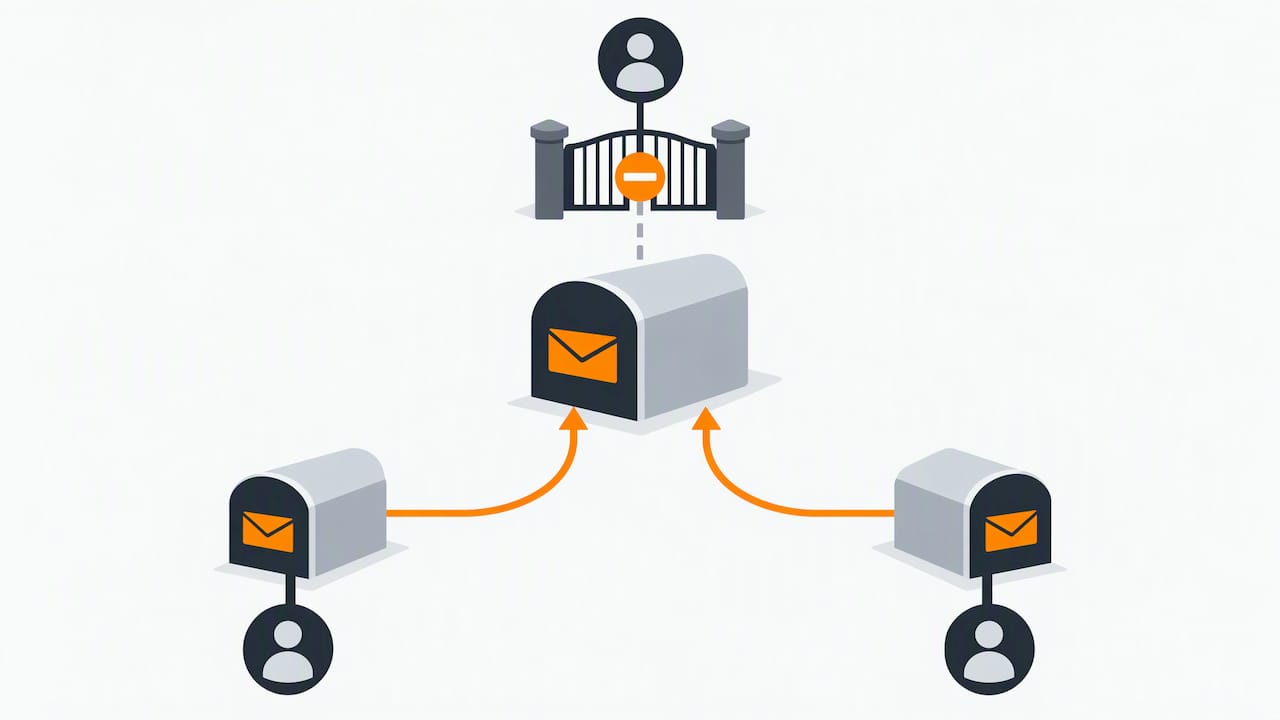
Pro Tip: If replies keep going out under someone’s personal name, check that Send As has been granted, not just Full Access.
If your team is new to these permissions, our Microsoft 365 training for SMEs covers mailbox access in a role-based plan.
What storage and licence rules apply?
Licensing is where most mailbox mistakes happen, so it is worth checking before you create or convert anything. Microsoft’s Exchange Online limits set the defaults.
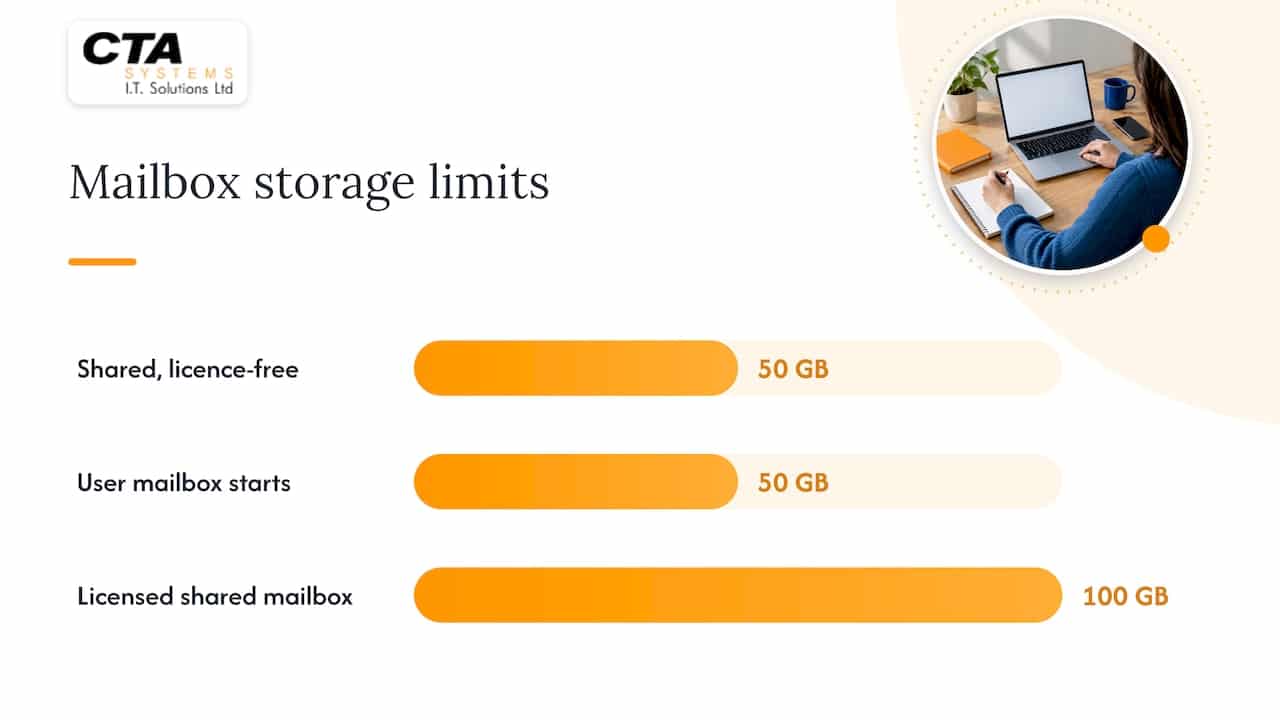
- Shared and user mailboxes both start at 50 GB.
- A shared mailbox needs a licence to reach 100 GB, and an auto-expanding archive needs the right licence or archiving add-on.
- Features such as litigation hold and other advanced compliance tools also need a licence on a shared mailbox.
- Exchange Online Plan 2 is one route to a larger mailbox; check the applicable licence requirements for other features.
A shared mailbox is licence-free only while it stays under 50 GB. Past that point, or when you need compliance features, assign a licence.
Our advice is to watch mailbox size monthly and assign licences before you hit the ceiling, not after mail starts bouncing. Shared mailboxes also cannot send encrypted mail in their own right, so anyone sending sensitive messages should do so from an individual licensed mailbox.
How do you convert a user mailbox to a shared mailbox?
This is the common offboarding move. A leaver’s mailbox becomes a shared one, so the history stays and the licence cost can go, as long as the result stays under 50 GB. Microsoft’s conversion guide sets out the full procedure.
- Check that the user mailbox has a licence assigned, because the convert option needs one.
- Convert the mailbox in the admin centre, or use Exchange Online PowerShell.
- Add the people who need access and grant Full Access plus Send As or Send on behalf.
- If the mailbox is under 50 GB, remove the licence to save the cost.
A few cautions apply. Do not delete the original user account, because the shared mailbox is anchored to it. Inbox rules and calendar items are preserved. If the user was already deleted, restoring them means resetting the password first.
Going the other way, a shared mailbox can be converted back to a user mailbox, and it will need a licence assigned at that point. Converting a distribution list is different: there is no automated method, so you create a replacement shared mailbox with the same addresses and reassign members.
If you keep mailbox history after a conversion, see our guide to Microsoft 365 backup for SMEs.
Which mailbox type should you choose?
Work through these questions and the answer usually becomes clear.
- Do you need to send encrypted mail? Use a user mailbox.
- Does the person need an independent sign-in? Use a user mailbox.
- Will several people read and reply under one address? Use a shared mailbox.
- Could the mailbox grow beyond 50 GB? Plan for a licence, or keep archiving in mind.
- Will dozens of people use it at once? Consider a Microsoft 365 group instead.
In practice, support@ and info@ addresses are shared mailboxes, while managers and anyone sending sensitive messages need user mailboxes. If people only need to receive a broadcast in their own inboxes, a distribution list does the job.
Pro Tip: Public addresses attract spam, so review your filtering when you set up a shared inbox. Our guide to hardening Exchange Online spam filtering shows how.
In larger organisations, licence optimisation and monitored conversions are worth handing to an IT partner, because small mistakes multiply across many mailboxes.
What do we recommend for small businesses?
When someone leaves, we usually convert their mailbox to a shared one. The history stays available, the licence cost can drop, and we keep an eye on mailbox size. Problems can arise from permissions set halfway or licences assigned twice. A short review early can save a long clean-up later.
— Will
How can we help with your mailbox setup?
If you would rather not untangle licences and permissions yourself, we can act as your external IT department. We look after Microsoft 365 for businesses like yours, from first setup to day-to-day management.

- Microsoft 365 setup and management
- Licence optimisation
- Monitored conversions, with permissions checked before anyone relies on them
- Care plans for ongoing support
The benefit is a conversion with permissions checked and ongoing monitoring from people who already know your systems. Contact us through our Microsoft 365 page and ask for a mailbox review.
FAQ
How do I check a user mailbox in Office 365 admin?
Open the Microsoft 365 admin centre and go to Users, then Active users. Select the person and open the Mail tab to see their mailbox details and permissions.
Can an unlicensed user access a shared mailbox?
Yes, the person opening a shared mailbox does not need a licence for the shared mailbox itself. They do need their own account, and delegated permissions such as Full Access, because nobody signs in to it directly.
What is the difference between a shared mailbox and a distribution list?
A distribution list sends each message to every member’s own inbox. A shared mailbox keeps a single central mailbox where several people can read and send as the group.
Can a shared mailbox send encrypted email?
Not on its own, because it has no distinct security context. Sensitive encrypted messages should be sent from an individual licensed mailbox.


