

For fast local restores and full control, choose NAS. For scalable off-site resilience, choose cloud backup. Most organisations benefit from a hybrid approach that combines both. The right answer depends on three things: how fast you need to restore (RTO), how much data loss you can tolerate (RPO), and what your budget and team can realistically manage.
TL;DR:
- NAS offers rapid, local restore capabilities that typically complete within minutes over your LAN, unlike slow cloud restores limited by internet bandwidth.
- Cloud backups provide scalable off-site resilience with managed versioning and immutability, but restoring large datasets can take hours or days depending on your internet speed.
- A hybrid approach combining NAS for fast local restores and cloud for off-site protection is generally recommended, especially when managing unpredictable data growth and disaster recovery.
- Cost considerations include upfront hardware expenses and ongoing maintenance for NAS, versus recurring cloud fees and egress charges for data retrieval, with scalability favoring cloud solutions.
- Regular testing of restores, secure access controls, and maintaining multiple data copies across different locations are critical for ransomware-resistant backup strategies.
Table of Contents
- What a NAS is and how local backup works
- What cloud backup is and how it differs from cloud storage or sync
- Key differences at a glance: speed, cost, control and scalability
- Pros and cons: NAS and cloud backup side by side
- How to choose: the decision checklist and questions to ask
- Hybrid options: backing a NAS up to the cloud
- Security and ransomware-resistant backup practices
- Costs and pricing signals to expect
- Data migration challenges when switching between NAS and cloud backup
- Backup software compatibility and integration
- Publisher perspective: when managed support makes sense
- Where CTA Systems fits if you need help deciding
- FAQ
- Sources
What a NAS is and how local backup works
A NAS, short for network-attached storage, is a dedicated device that sits on your home or office network and stores files centrally, so every computer can reach the same data without juggling copies. Many small businesses use one as a shared drive, a media server, or a backup target for laptops and desktops.
RAID, the technology that spreads data across multiple drives inside a NAS, protects against a single drive failure, but it is not a backup: a fire, flood, theft or ransomware attack takes out RAID and your data together. Snapshots, a feature on most modern NAS units, let you roll back to an earlier version in seconds, which is genuinely useful when someone overwrites or deletes the wrong file.
Running a NAS brings real responsibilities:
- Upfront hardware costs for the unit and drives, paid once rather than monthly.
- Firmware updates and maintenance that someone needs to keep on top of.
- Occasional friction after operating system upgrades, including reported cases where macOS updates break Time Machine backups to NAS devices, often fixed by re-enabling network broadcast settings or recreating the backup destination.
What cloud backup is and how it differs from cloud storage or sync
Cloud backup and cloud sync get confused constantly, and the difference matters. Sync tools such as consumer file-sharing apps mirror changes across devices in near real time, so a mistake or infection on one device can propagate to the cloud copy immediately. A proper backup instead keeps distinct recovery points, each one a snapshot of your data at a particular moment, so you can roll back to a clean state from before an incident happened.
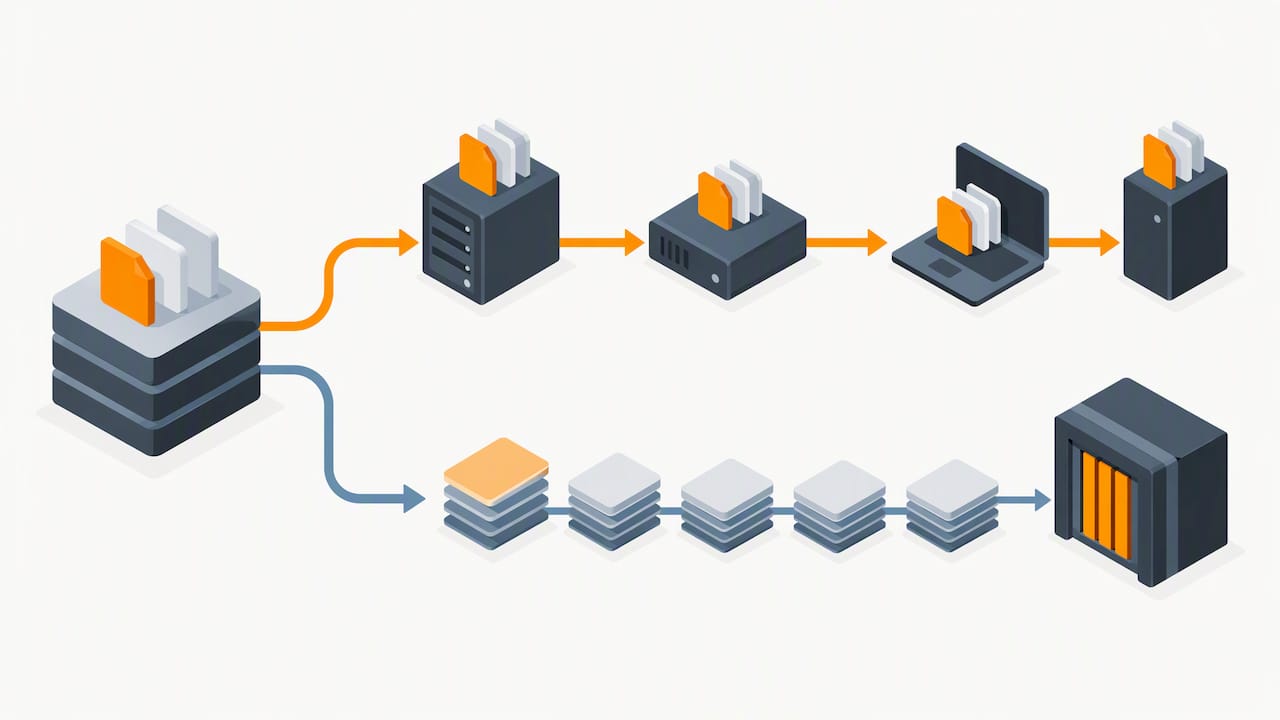
Good cloud backup services build in versioning, keeping several historical copies of each file, and increasingly offer immutability, meaning a recovery point cannot be altered or deleted, even by an attacker with valid credentials. Retention policies then decide how long each version is kept before it ages out.
A few practical realities shape the experience:
- Initial seeding, the first full upload of your data, can take days or weeks depending on your connection.
- Day-to-day backups use ongoing bandwidth, which can strain a modest broadband line.
- Restoring a large dataset pulls that same volume of data back down, and restore speed is bound by your internet connection rather than your hardware.
Key differences at a glance: speed, cost, control and scalability
A NAS restore happens over your local network, often finishing in minutes because you are moving data at LAN speed rather than waiting on an internet connection. Cloud restores depend on your upload and download bandwidth, so recovering a large dataset can stretch into hours or days, directly affecting your RTO.
Cost patterns differ too. NAS spending is largely capital expenditure: you pay for the box and drives up front, then absorb power and replacement costs over time. Cloud backup is typically operational expenditure, a predictable monthly or annual fee, though hidden costs appear in egress charges (fees for pulling data out) and long-term retention tiers.
A few other distinctions matter when weighing the two:
- NAS keeps data physically on your premises, which some organisations prefer for data residency and direct control.
- Cloud backup shifts maintenance and patching to the provider, reducing the burden on your own staff.
- Scalability favours cloud: adding capacity is a plan upgrade, not a hardware purchase, which suits unpredictable growth far better than a fixed NAS chassis.
Pros and cons: NAS and cloud backup side by side
Both options carry genuine strengths and genuine limitations, and weighing them honestly is the only way to pick well.
- NAS pros: fast local restores, direct control over your hardware and data, a one-off cost rather than a recurring bill, and better privacy since data never leaves your premises by default.
- NAS cons: significant upfront capital outlay, exposure to physical risks like fire or theft, ongoing maintenance demands, and the need for a separate off-site copy to avoid a single point of failure.
- Cloud pros: built-in off-site resilience, storage that scales up or down as needed, and managed features such as versioning and immutability that are hard to replicate cheaply at home.
- Cloud cons: recurring fees that add up over years, slow restores for very large datasets, egress charges when pulling data back, and reliance on the provider’s own security controls staying sound.
How to choose: the decision checklist and questions to ask
Start with your RTO and RPO. If a few hours of downtime would genuinely hurt the business, that points towards local restores or a hybrid setup rather than pure cloud. If losing a day’s work is tolerable, cloud alone may suffice.
Work out the full cost of ownership, not just the sticker price: drives, replacement cycles, power, and the egress fees you would pay to actually get data back in an emergency. Then be honest about staff skills. Someone needs to test restores regularly, and if nobody has the time or expertise, a managed service closes that gap.
Before committing, ask any vendor or managed provider:
- What SLA do you guarantee for restore times?
- How often are test restores actually performed?
- Are backups immutable, and where is the data physically held?
- Is multi-factor authentication enforced on backup accounts?
Pro Tip: Ask to see a recent test restore report before signing anything, not just a feature list.
Hybrid options: backing a NAS up to the cloud
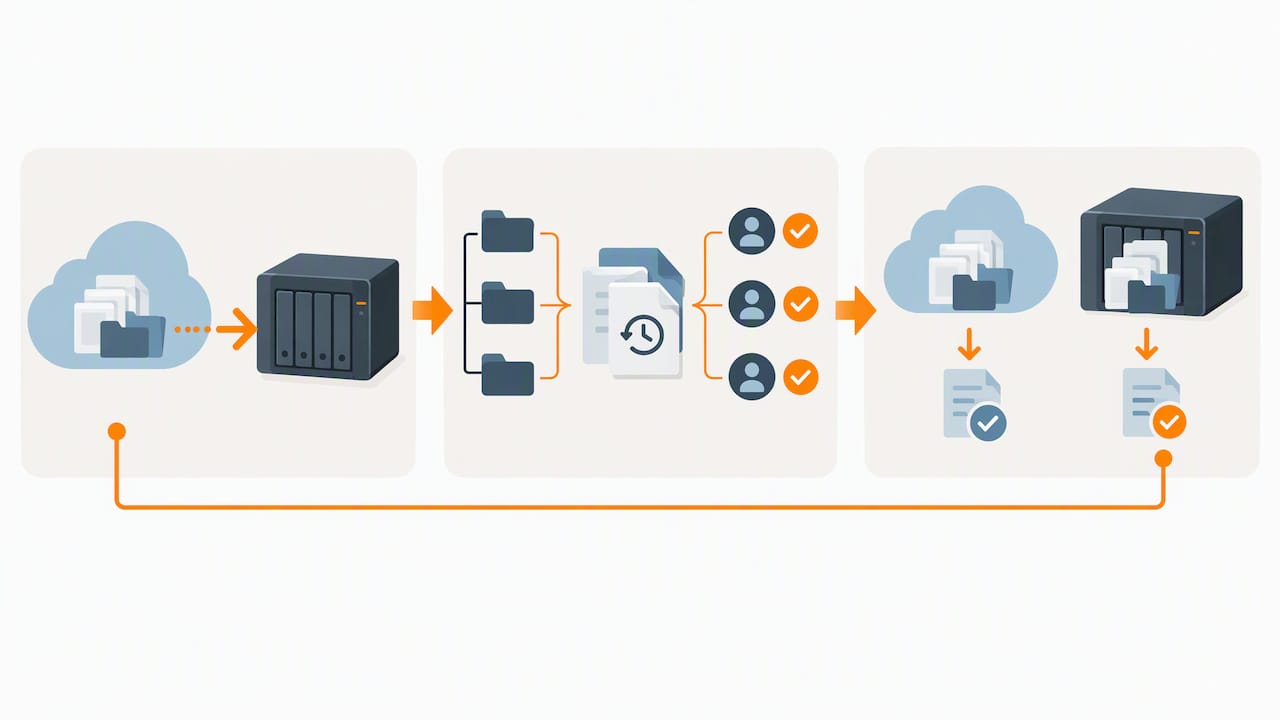
Most organisations that get this right run a hybrid setup rather than picking one side outright. TechTarget’s overview of NAS-to-cloud approaches describes two common patterns: NAS-first, where the NAS handles day-to-day restores and an off-site cloud copy protects against site loss, and cloud-first, where cloud is the primary store and a local cache speeds up frequent restores.
Vendors split between offering their own cloud target and letting you “bring your own cloud”, each with trade-offs in convenience versus control. In practice, getting a NAS into the cloud smoothly involves a few steps:
- Seed the initial dataset, often the slowest part, sometimes using a shipped drive for very large volumes.
- Use block-level deduplication so only changed data gets uploaded afterwards.
- Schedule off-site syncs for quiet hours and throttle uploads to avoid saturating your connection.
Security and ransomware-resistant backup practices
Ransomware specifically targets backups, so resilience has to be designed in rather than assumed. The National Cyber Security Centre’s guidance on offline backups is unambiguous: keep at least one backup offline or logically disconnected, since a backup that is permanently reachable from your main network can be encrypted along with everything else.
Backups that remain connected and reachable to every administrator are the ones attackers find and destroy first, according to NCSC mitigation guidance. That single fact shapes most of what follows.
- Use immutable retention or versioning wherever your NAS or cloud provider supports it.
- Protect backup accounts with multi-factor authentication, ideally from a separate device used only for backup administration.
- Limit the number of systems that can act as backup clients, reducing the attack surface.
- Test restores regularly and keep copies in at least three places, following the long-standing 3-2-1 rule: three copies, two different media, one off-site.
Costs and pricing signals to expect
Cloud pricing is easiest to anchor with a real example. Microsoft’s OneDrive plans offer 1 TB of storage through a Microsoft 365 Personal subscription at around £84.99 a year, with business-grade tiers costing more once admin controls and extra protection are included.
Working out NAS cost is a different exercise: add the price of the drives, factor in a replacement cycle of roughly three to five years, then account for the electricity a device left running around the clock will draw.
- Cloud costs can surprise you through egress fees charged when restoring data, not just storing it.
- Long-term retention tiers often cost more than the headline storage price suggests.
- Deduplication and archiving features, where available, reduce the data you actually pay to store or move.
Data migration challenges when switching between NAS and cloud backup
Moving from one backup model to another is rarely instant, and underestimating the effort is a common mistake. Shifting a large NAS dataset into the cloud means uploading everything at least once, and on a typical business broadband connection that initial seeding can take days. Some NAS vendors and backup agents support source-side deduplication, which reduces the amount of data actually transferred by skipping blocks that have not changed, easing this first hurdle considerably.
Moving the other way, from cloud back to a new NAS, carries its own friction. Downloading a full dataset consumes bandwidth and time, and restore speed is bound by your internet connection rather than local hardware, which can turn a straightforward migration into a multi-day project if not planned around off-peak hours.
Compatibility is another sticking point. Backup software tied closely to one platform’s file structure or permissions model does not always translate cleanly to another system, so file ownership, folder permissions and historical versions can need manual reconciliation. Running both systems in parallel for a transition period, rather than cutting over in one step, gives you a safety net if something does not transfer as expected. It also gives you a chance to test restores from the new location before retiring the old one entirely, which matters more than the migration speed itself.
Backup software compatibility and integration
Most modern NAS devices and cloud services are built to work with a reasonably wide pool of backup software, but compatibility is never universal, so it is worth checking before committing to an architecture. Many NAS vendors ship their own backup agents alongside support for open standards, which means third-party backup tools can often target the same device without forcing you into a single ecosystem.
On the cloud side, services increasingly advertise direct NAS compatibility, letting a device back itself up straight to a vendor’s cloud or to a third-party cloud of your choosing, a trend TechTarget notes has become common across the market. That flexibility is useful, but it also means the decision often comes down to convenience against control: a vendor-supplied cloud is simpler to set up, while bringing your own cloud keeps you free to switch providers later.
For temporary recovery scenarios, some businesses lean on hosted virtual servers as a stand-in while primary infrastructure is rebuilt. Providers such as AceRDP’s Windows RDP and VPS hosting offer that kind of short-term, remotely accessible platform, which can be useful if a restore needs a working environment before your own hardware is back online. Whatever software stack you choose, confirm it supports the retention and immutability features discussed earlier. A backup tool that cannot preserve multiple versions or lock them against deletion undermines much of the resilience this article has covered.
Publisher perspective: when managed support makes sense
Plenty of businesses can run a solid backup strategy themselves. Where it tends to fall apart is consistency: nobody tests the restore, nobody notices a failed job for weeks, nobody owns the problem. Managed support earns its keep by replacing good intentions with guaranteed routine, proactive monitoring, and one supplier who answers when something breaks.
— Will
Where CTA Systems fits if you need help deciding
If working through RTOs, retention policies and restore testing feels like more than your team has time for, that is exactly the gap a Care Plan is built to close: proactive monitoring, regular testing and one fixed monthly fee instead of surprises. Our Managed IT Support services cover backup and recovery alongside the rest of your infrastructure, so you get one accountable supplier rather than several.

Get in touch through CTA Systems to talk through which setup suits your business.
FAQ
Is NAS on cloud?
A NAS is physical hardware you own and keep on-site, not cloud storage itself, though many NAS devices can connect to a cloud service for off-site backup. This hybrid pairing is common precisely because it combines fast local access with cloud resilience.
Are emails stored in the cloud?
Most modern email services, including Microsoft 365 and similar platforms, store mail on cloud servers rather than solely on a local device. Whether that counts as a true backup depends on the provider’s retention policy, so a separate backup is often worth considering for anything business-critical.
What is the best NAS for time machine backup?
There is no single NAS that suits every Time Machine setup, and compatibility has occasionally broken after macOS updates, with workarounds reported by the Synology community such as re-enabling Bonjour broadcast via SMB. Check current compatibility notes from your NAS vendor before relying on it as your only Time Machine target.
How much does cloud storage cost?
Pricing varies by provider and tier, but Microsoft’s OneDrive plans show 1 TB available through Microsoft 365 Personal at around £84.99 a year as a consumer example. Business-grade cloud backup typically costs more once admin controls and stronger retention are included.


